🏷️ Attribute List
Main attributes for building debug menus.
using Logify;
🔘 [LogiButton]
Basic attribute for executing methods. UI automatically switches based on presence of arguments.
1. Button Only (No Arguments)

| Argument | Description |
|---|---|
| 1st argument | Label name |
| 2nd argument | Text within button |
[LogiButton("Test Button", "Execute")]
void Test() { /* process */ }
2. With Input (With Arguments)
When applied to methods with arguments, UI is generated to input values and execute.
Supports string, int, float, bool, Enum.
| Argument | Description |
|---|---|
| 1st argument | Label name |
| 2nd argument | Text within button |
| 3rd argument | Field initial value |
- Numeric / String
- Boolean
- Enum

[LogiButton("Test Integer", 10)]
void Test(int integer) { }

[LogiButton("Test Boolean", "Set", true)]
void Test(bool boolean) { }

[LogiButton("Test Enum", "Select")]
void Test(TestEnum type) { }
📥 [LogiInput]
Attribute for directly inputting and modifying values.
Supports string, int, float, bool, Enum.
| Argument | Description |
|---|---|
| 1st argument | Label name |
| 2nd argument | Field initial value |
- Numeric / String
- Boolean
- Enum

[LogiInput("Test Integer", 100)]
void Test(int integer) { }

[LogiInput("Test input Boolean", true)]
void TestInput(bool boolean) { }

[LogiInput("Test input Enum")]
void TestInput(TestEnum type) { }
🎚️ [LogiRange] / [LogiRangeButton]
Adjust numeric values with range specification (slider).
Supports int, float.
- Standard Range
- Range with Button

| Argument | Description |
|---|---|
| 1st argument | Label name |
| 2nd argument | Minimum value |
| 3rd argument | Maximum value |
| 4th argument | Field initial value |
[LogiRange("Test Range integer", 0, 100, 10)]
void TestRangeButton(int integer) { }

| Argument | Description |
|---|---|
| 1st argument | Label name |
| 2nd argument | Text within button |
| 3rd argument | Minimum value |
| 4th argument | Maximum value |
| 5th argument | Field initial value |
[LogiRangeButton("Test Range integer", "Run", 0, 100, 10)]
void TestRangeButton(int integer) { }
🖼️ [LogiPreview]
Allows viewing images.
Supports Sprite, Texture2D.
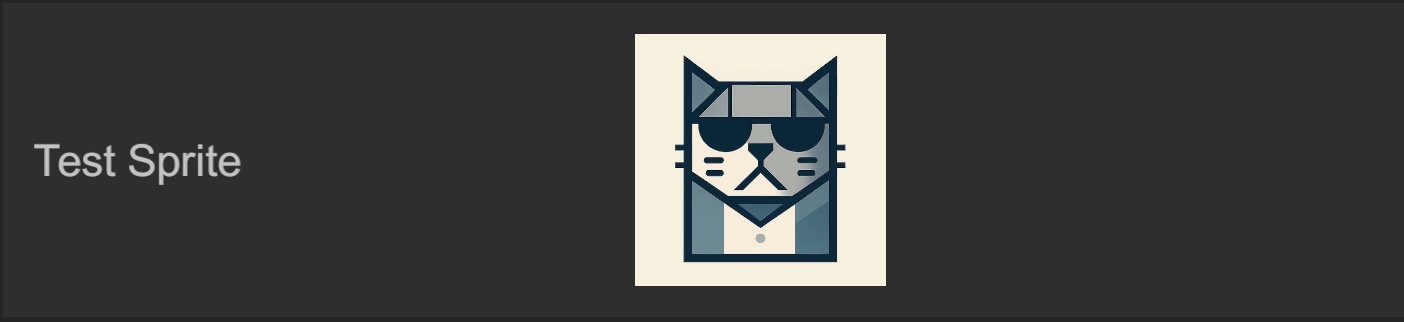
[LogiPreview("Test Sprite")]
Sprite GetPlayerIcon() => _playerIcon;
📝 Information Display
Attributes specialized for "displaying" debug information.
[LogiLabel]
Simple text display.

[LogiLabel]
string GetStatus() => "Test Label";
[LogiStatus]
Status display with label. Can select copy button display option.

[LogiStatus("Test Status", true)]
string GetBuildSign() => $"Integer set to: {_integer}";
[LogiTextArea]
Suitable for viewing or inputting long text.
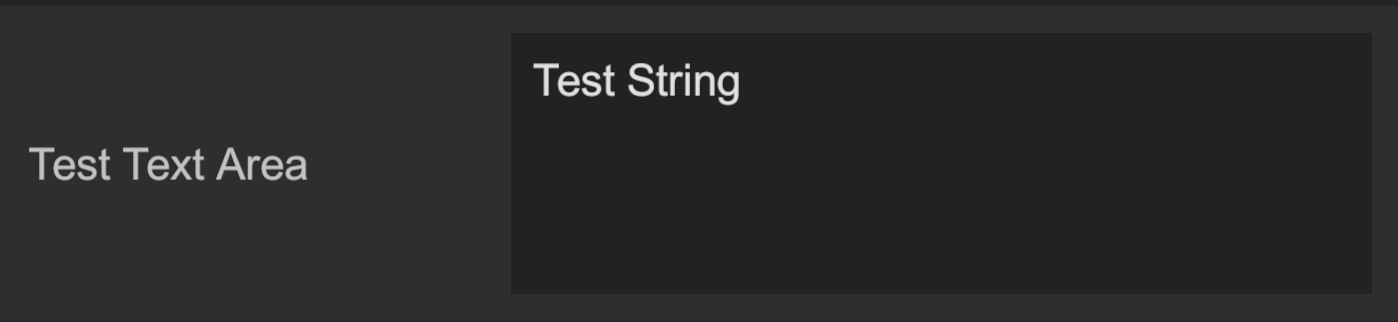
[LogiTextArea("Test Text Area")]
void UpdateLog(string text) { }
⚠️ Managed Stripping Considerations
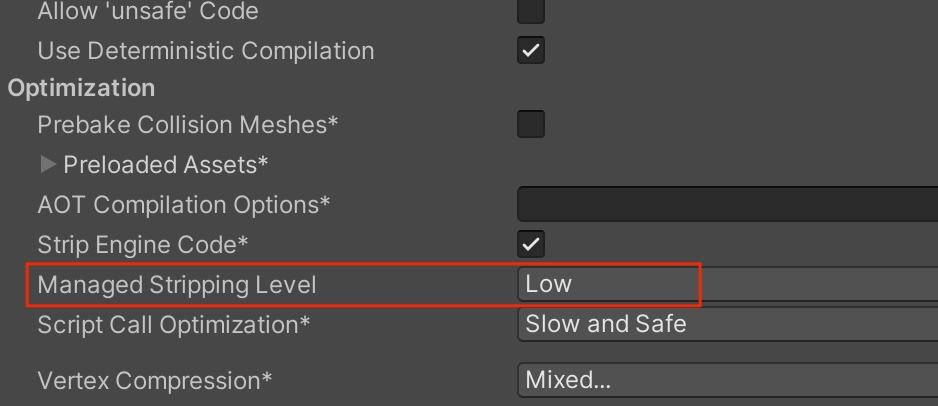
When Unity's build setting Managed Stripping Level is set to Medium or High, methods and fields not directly referenced in code may be removed (stripped) by Unity during builds.
Since Logify-Unity uses reflection to detect Attributes, they won't appear in the debug menu if stripped. If this occurs, add the [Preserve] attribute alongside attributes on members.
using UnityEngine.Scripting; // Required for Preserve attribute
using Logify;

public class PlayerDebug : MonoBehaviour
{
    [LogiButton("Level Up")]
    [Preserve] // Stripping countermeasure
    void LevelUp()
    {
        // ...
    }
}
If applying [Preserve] individually is cumbersome, we recommend creating a link.xml file to collectively exclude specific classes or namespaces from stripping.
Show link.xml configuration example
<linker>
  <assembly fullname="Logify" preserve="all"/>

  <assembly fullname="YourGame.Scripts">

    <namespace fullname="YourGame.Debug" preserve="all"/>

    <type fullname="YourGame.Managers.PlayerManager" preserve="nothing">
      <method signature="System.Void LevelUp()"/>
      <method signature="System.Void AddItem(System.Int32,System.String)"/>
    </type>
  </assembly>

  <assembly fullname="UnityEngine.CoreModule" preserve="all"/>
</linker>