💻 In-Game Console
Provides a debugging experience on devices nearly equivalent to Unity Editor's Console window.
Automatically catches Debug.Log and exceptions, instantly displaying information needed for troubleshooting.
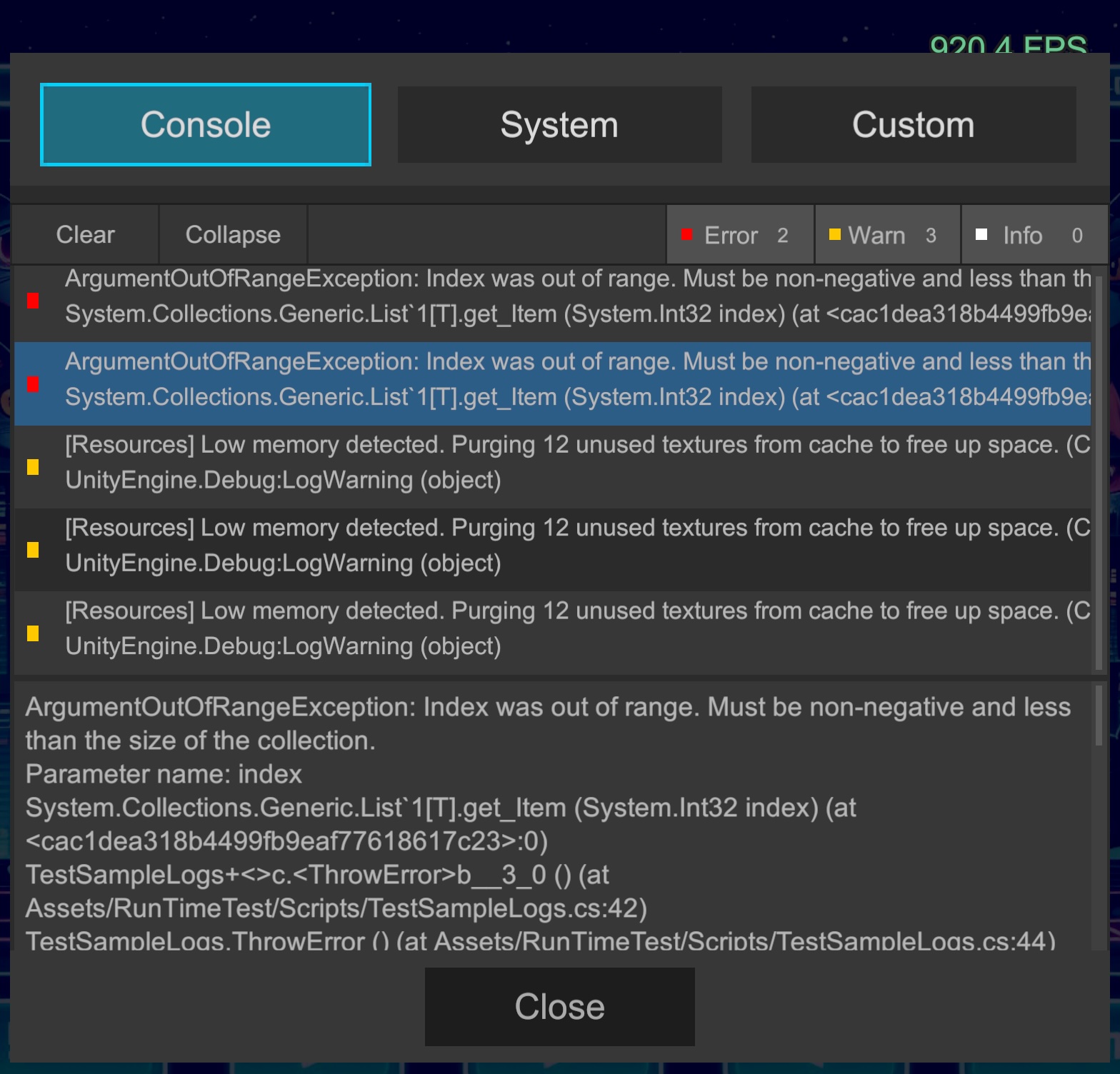
🛠️ Basic Features
Developers familiar with the Editor Console can operate intuitively without explanation.
- Clear: Removes all displayed logs
- Collapse: Consolidates duplicate logs into one for better visibility
Filter (Info/Warn/Error):
- Current log count is displayed next to each icon
- Tap the count to toggle display for each level
- Detail View: Tap a log entry to display detailed stack trace at the bottom
⚠️ Differences from Editor Console
The following features are not available:
- Keyword search functionality (Search)
- External file access features such as
Open Player Log
⚙️ Maximum Log Count Settings
To limit memory consumption, there is a cap on the number of logs retained.
- Default: 1000 entries
- How to change: Adjustable from Unity menu
Window > Logify-Unity > Settings.
tip
Significantly increasing the maximum log count may impact device UI rendering performance (GC Alloc, etc.). We recommend operating with the default 1000 entries. When you need to track large volumes of logs, we recommend using the Feedback feature described later to send log files externally.