💬 Slack App Integration
Setup procedure for sending feedback to specific channels using Slack's Bot User feature. Unlike Discord, Slack requires a two-step process: "creating the app" and "adding to channel".
Getting OAuth Token and Channel ID
First, create a dedicated app on the Slack API site.
-
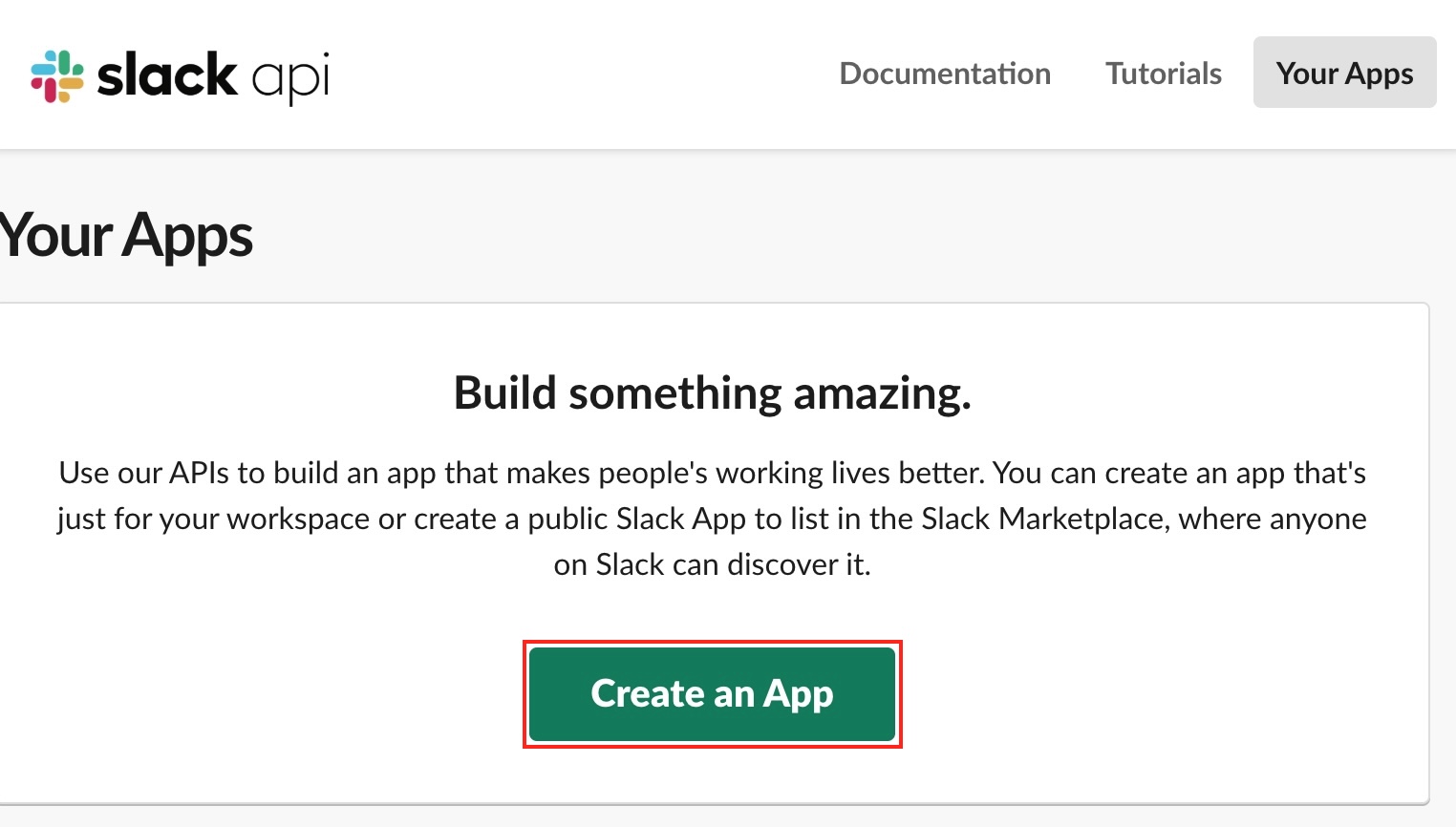
Navigate to App Creation Screen Access Slack API: Your Apps in browser and click the Create New App button.
-
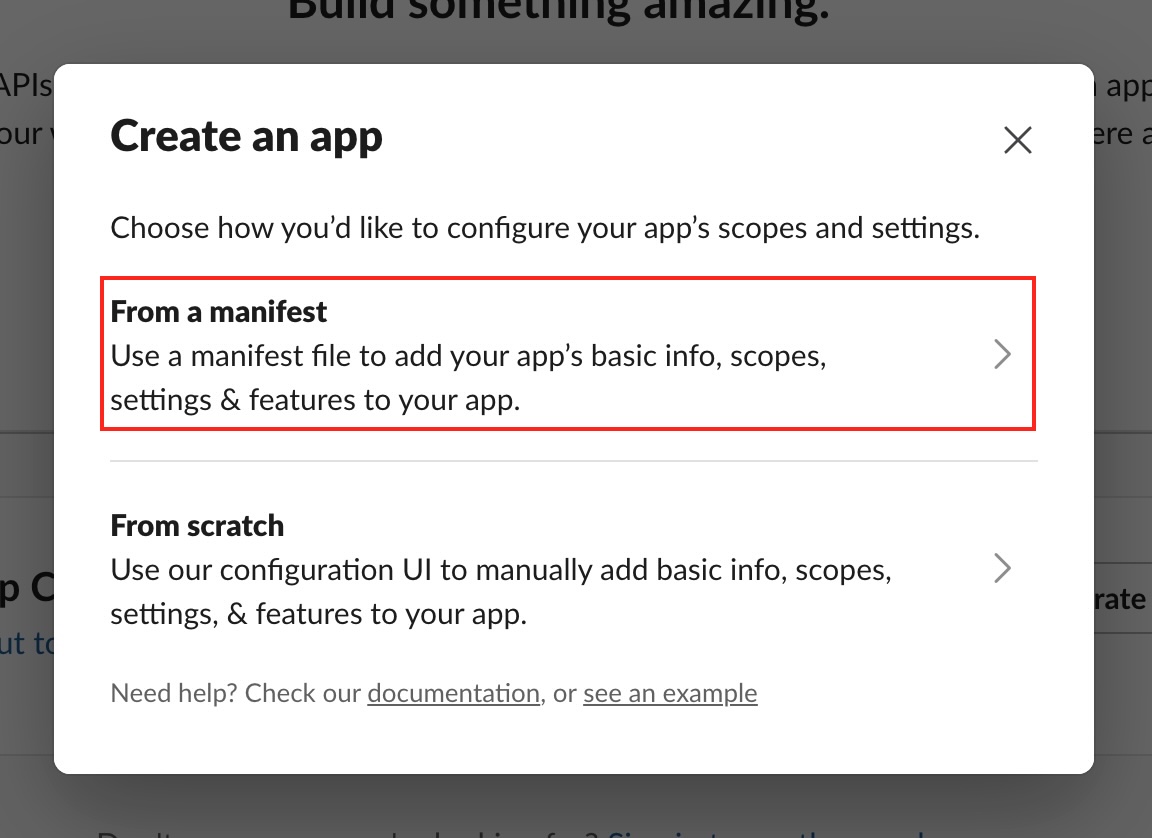
Select Manifest Mode Select From a manifest to simplify configuration.
-
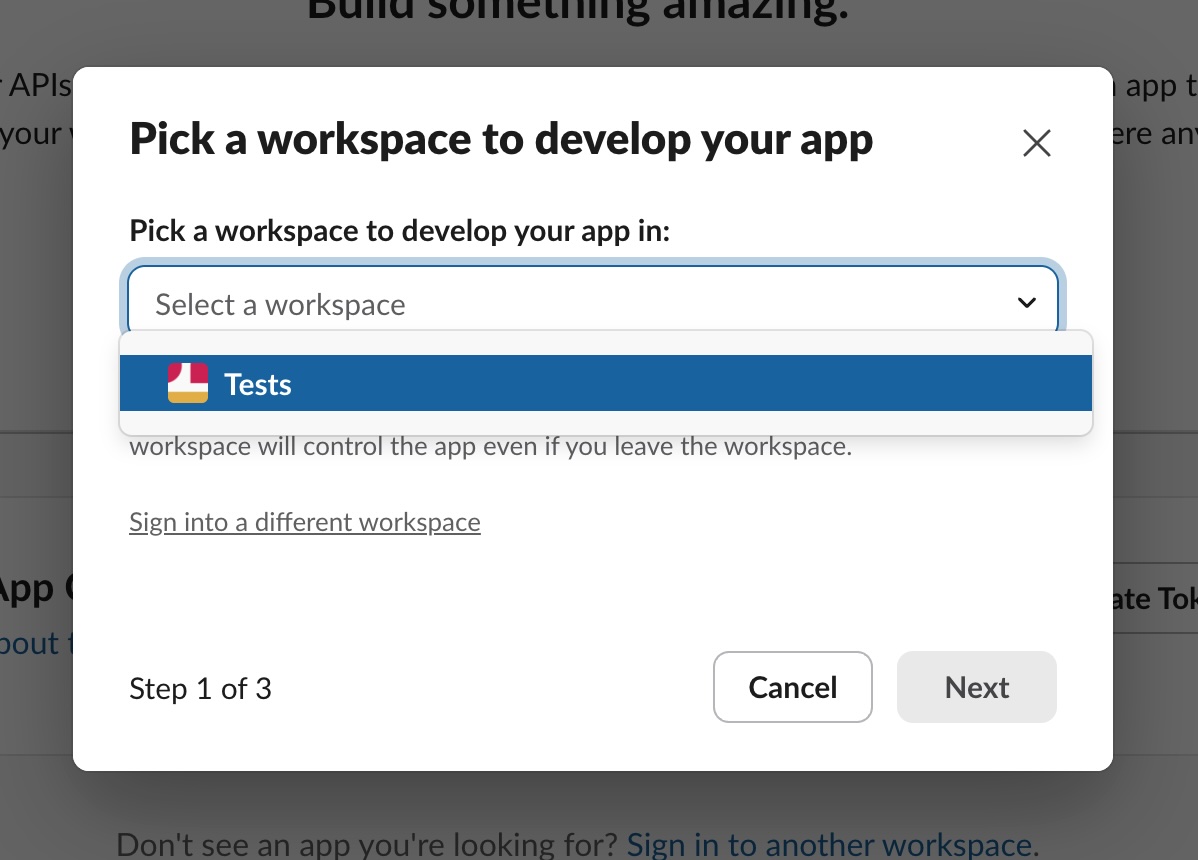
Select Workspace Select the workspace where you want to develop and install the app.
-
Enter Manifest (YAML) Select the YAML tab and copy-paste the following code.
Changing SettingsTo change the app name, edit
name(internal name) anddisplay_name(display name)._metadata:
major_version: 1
minor_version: 1
display_information:
name: logify-feedback
description: Bot tokens created for this app can just post messages to channels they're invited to
background_color: "#d982b5"
features:
bot_user:
display_name: Feedback
always_online: true
app_home:
home_tab_enabled: false
messages_tab_enabled: false
oauth_config:
scopes:
bot:
- chat:write
- files:write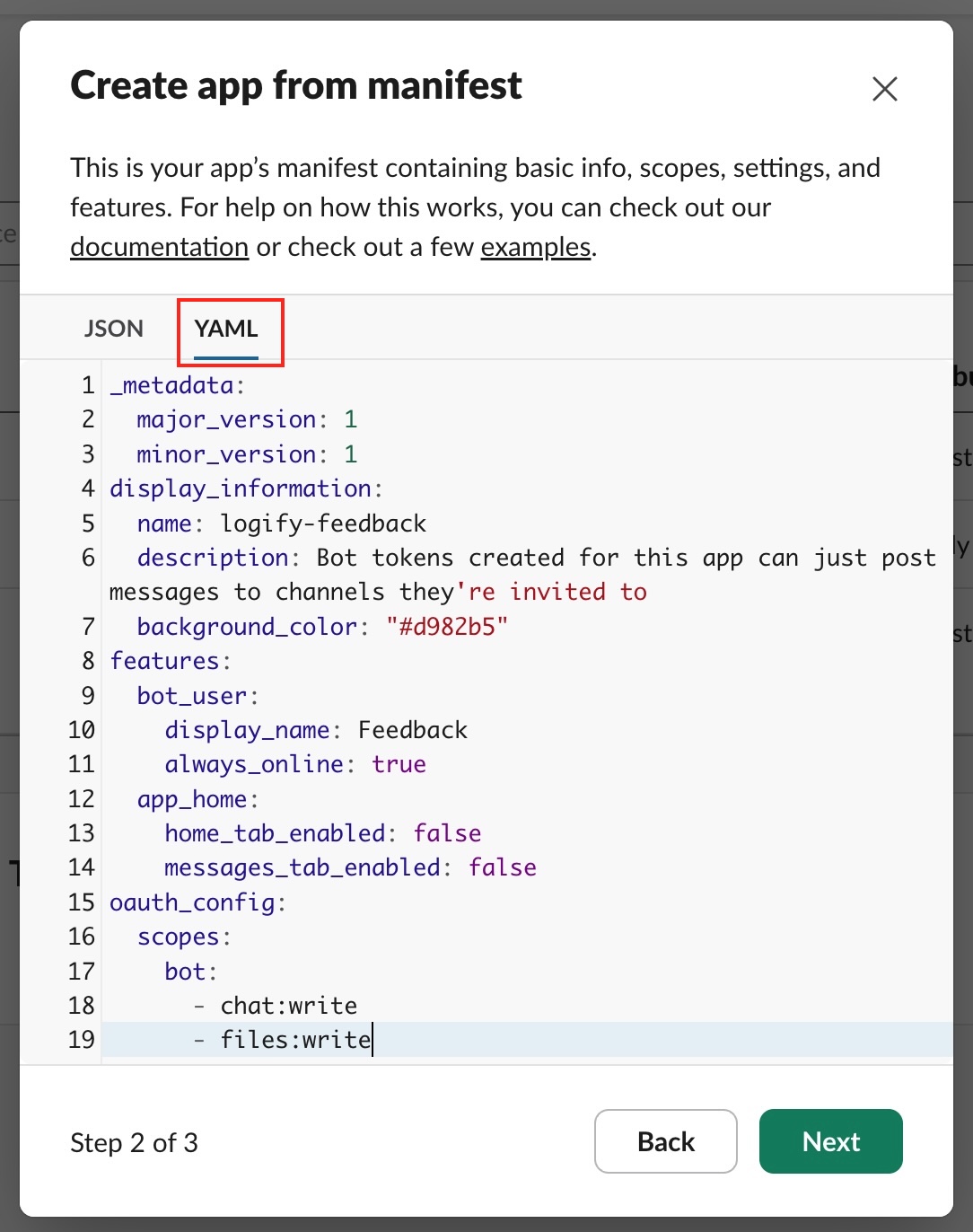
-
Confirm Permissions and Create Verify that Bot Scopes includes
chat:writeandfiles:write, then click Create.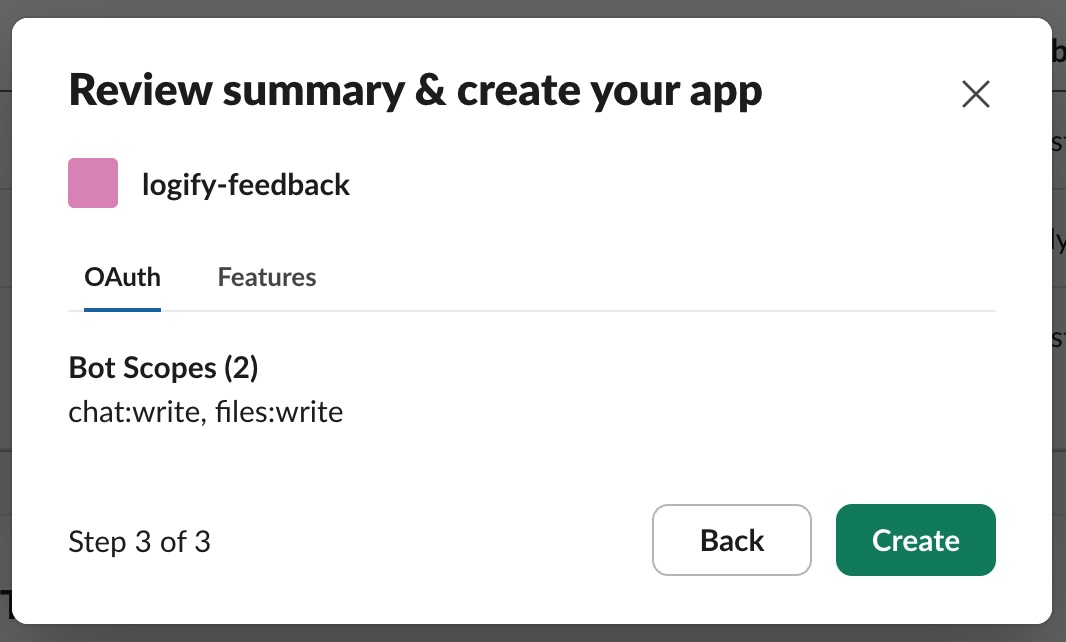
Installing and Getting Token
-
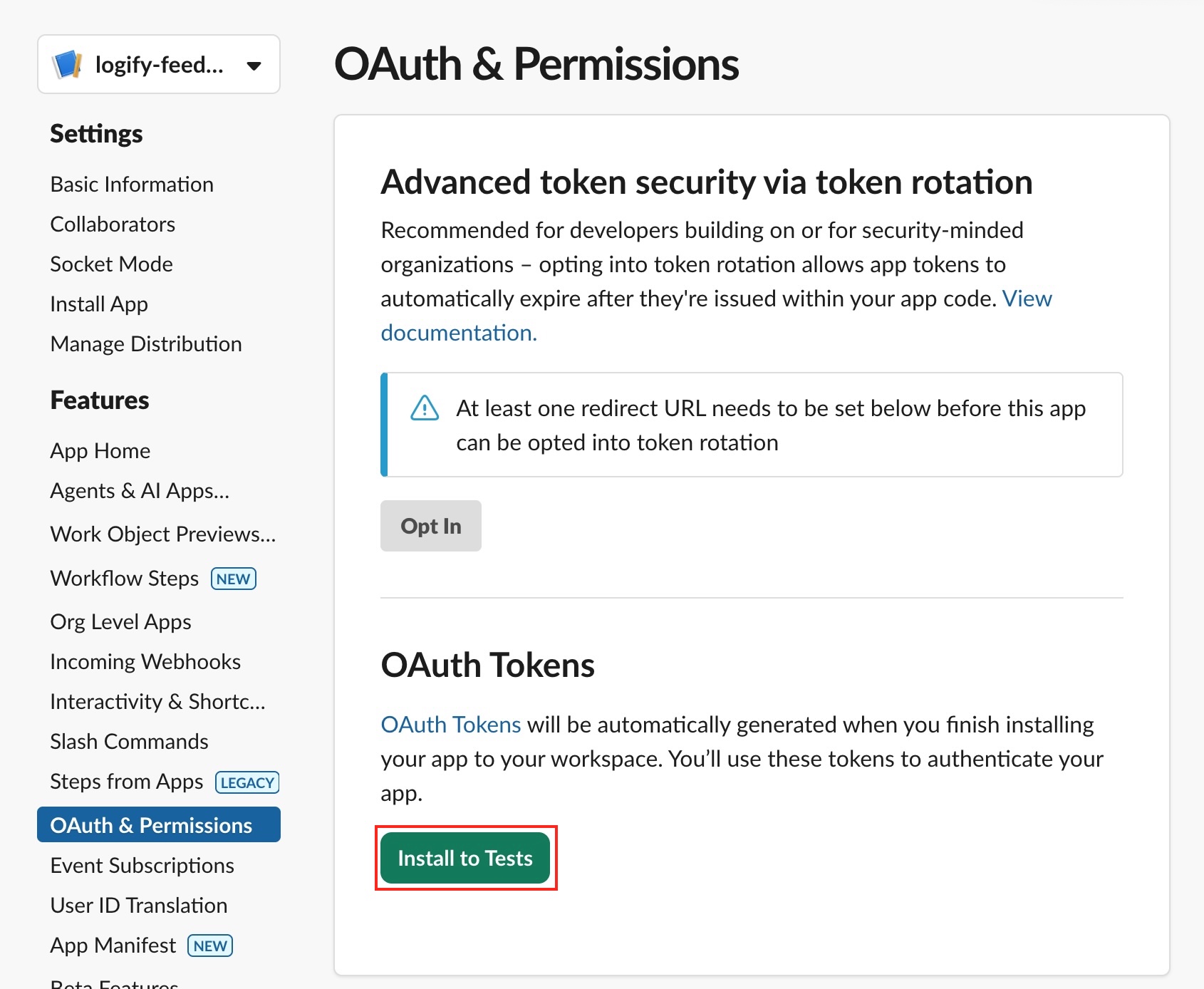
Install to Workspace Open OAuth & Permissions in the left menu and click Install to [Workspace Name].
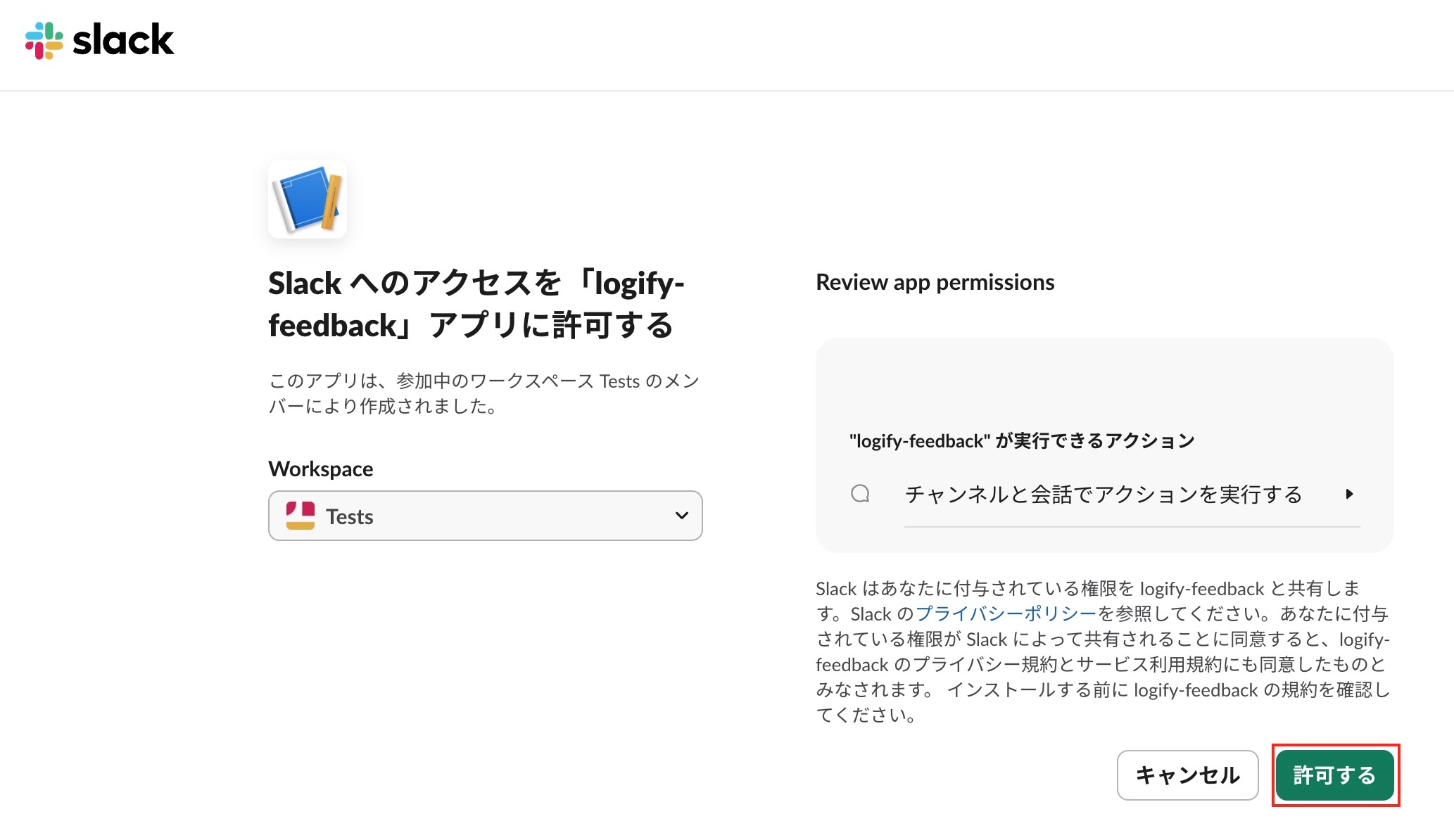
When the permission request screen appears, select "Allow".
-
Copy Bot User OAuth Token Copy the issued Bot User OAuth Token (string starting with
xoxb-) and save it. This will be used later in Unity settings.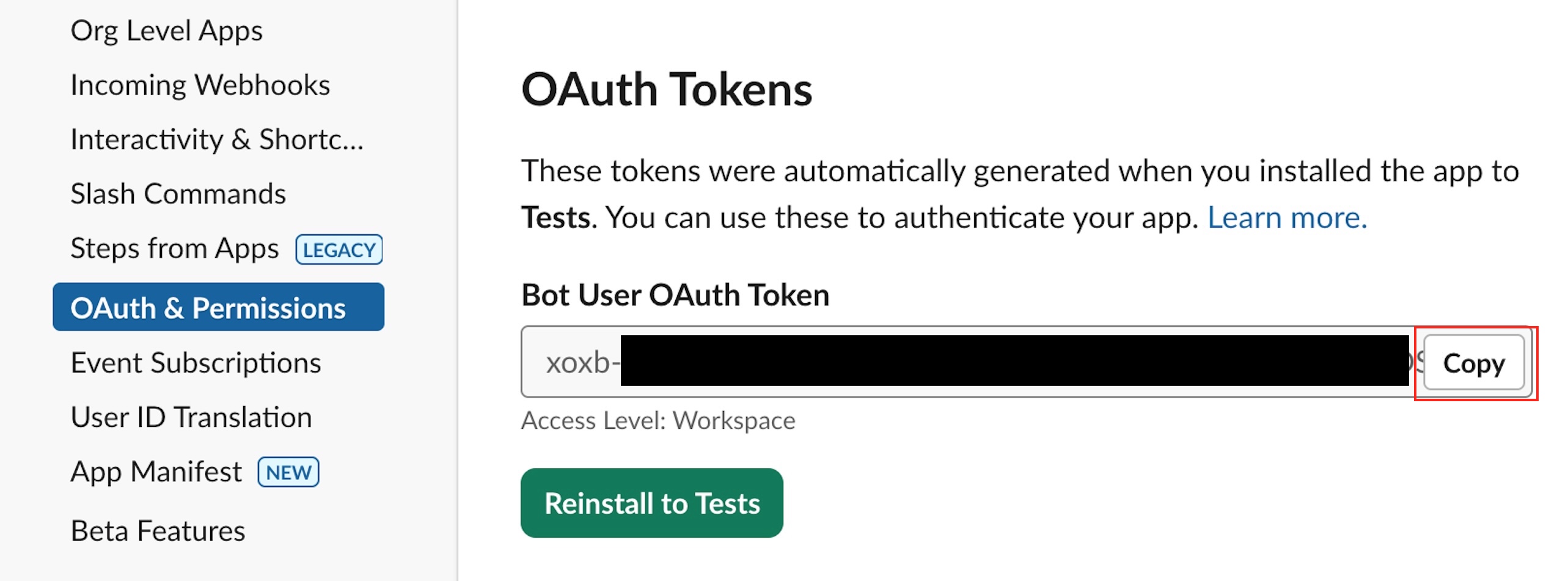
Channel Setup
Bots can only post to channels they are invited to.
-
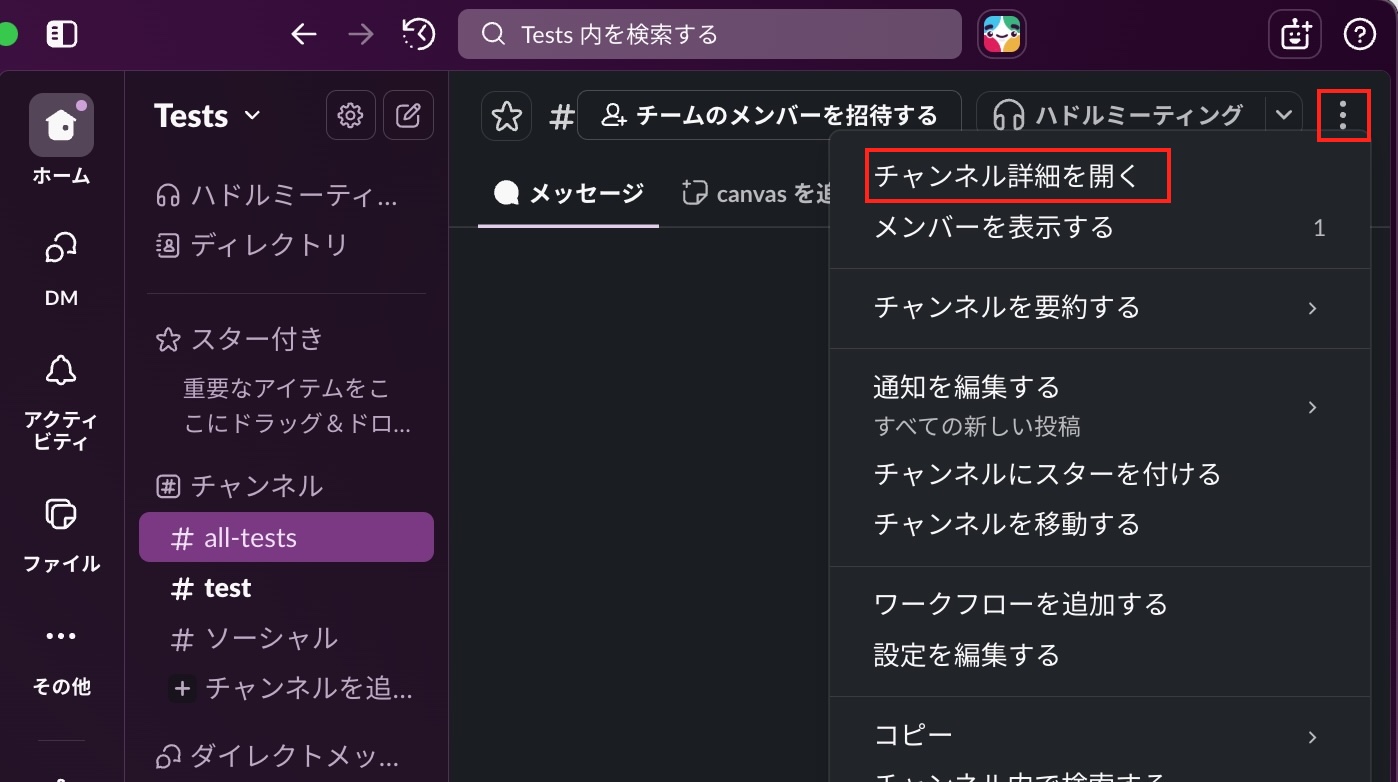
Add App Open the Slack app, navigate to the channel where you want to receive feedback, and click the details icon in the upper right.
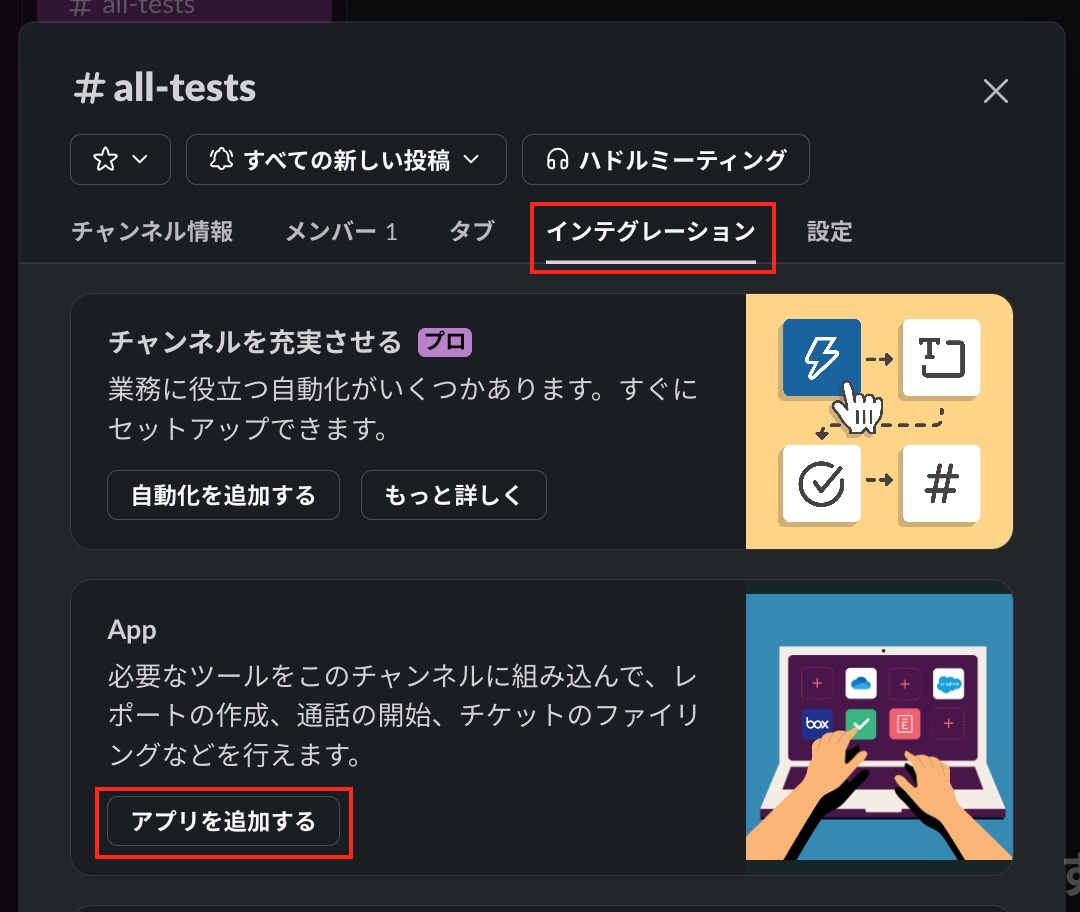
Open the "Integrations" tab and click Add apps.
Find and Add the app you created earlier (e.g.,
logify-feedback).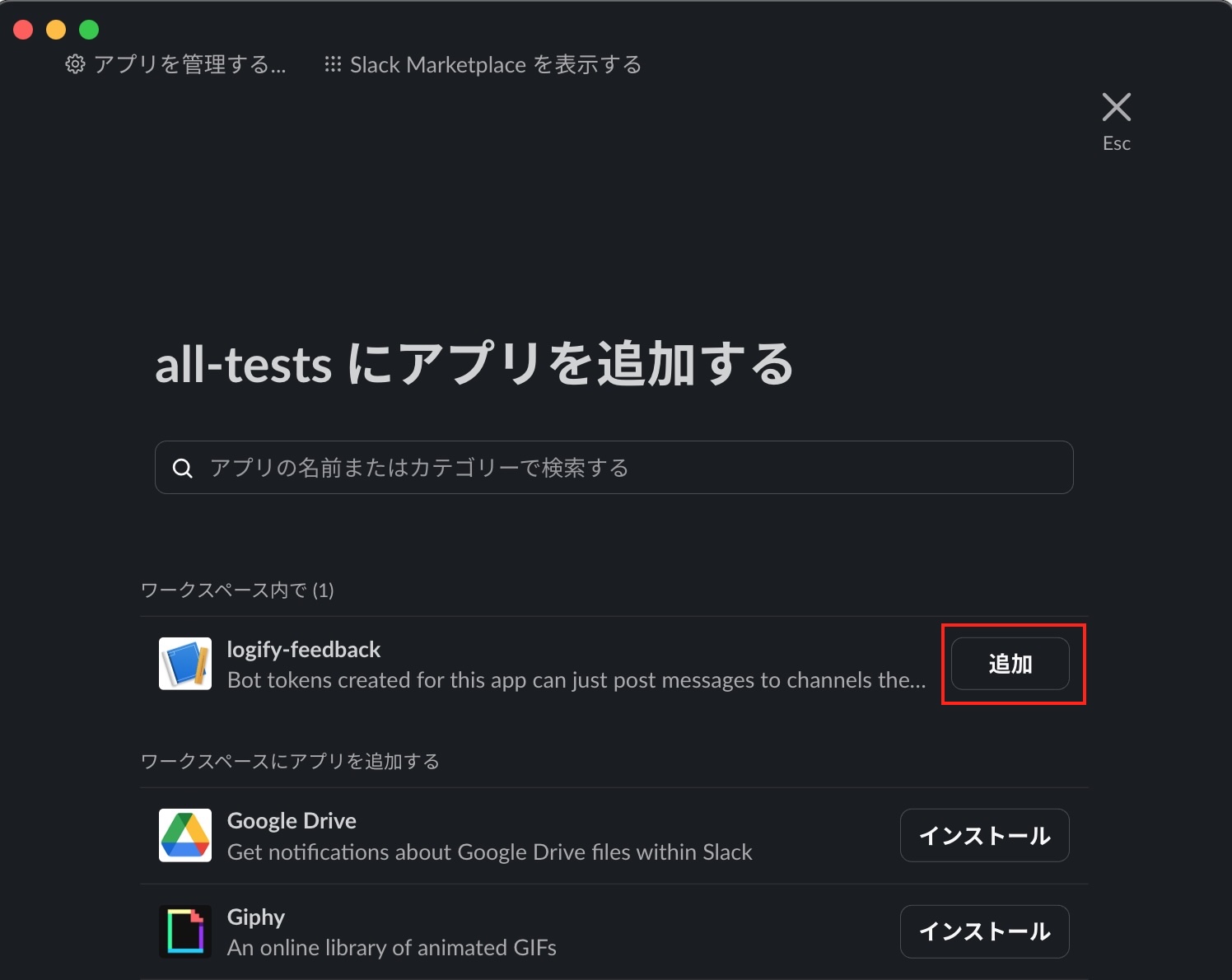
-
Get Channel ID Copy the Channel ID (e.g.,
C12345678) at the bottom of the same channel details screen and save it.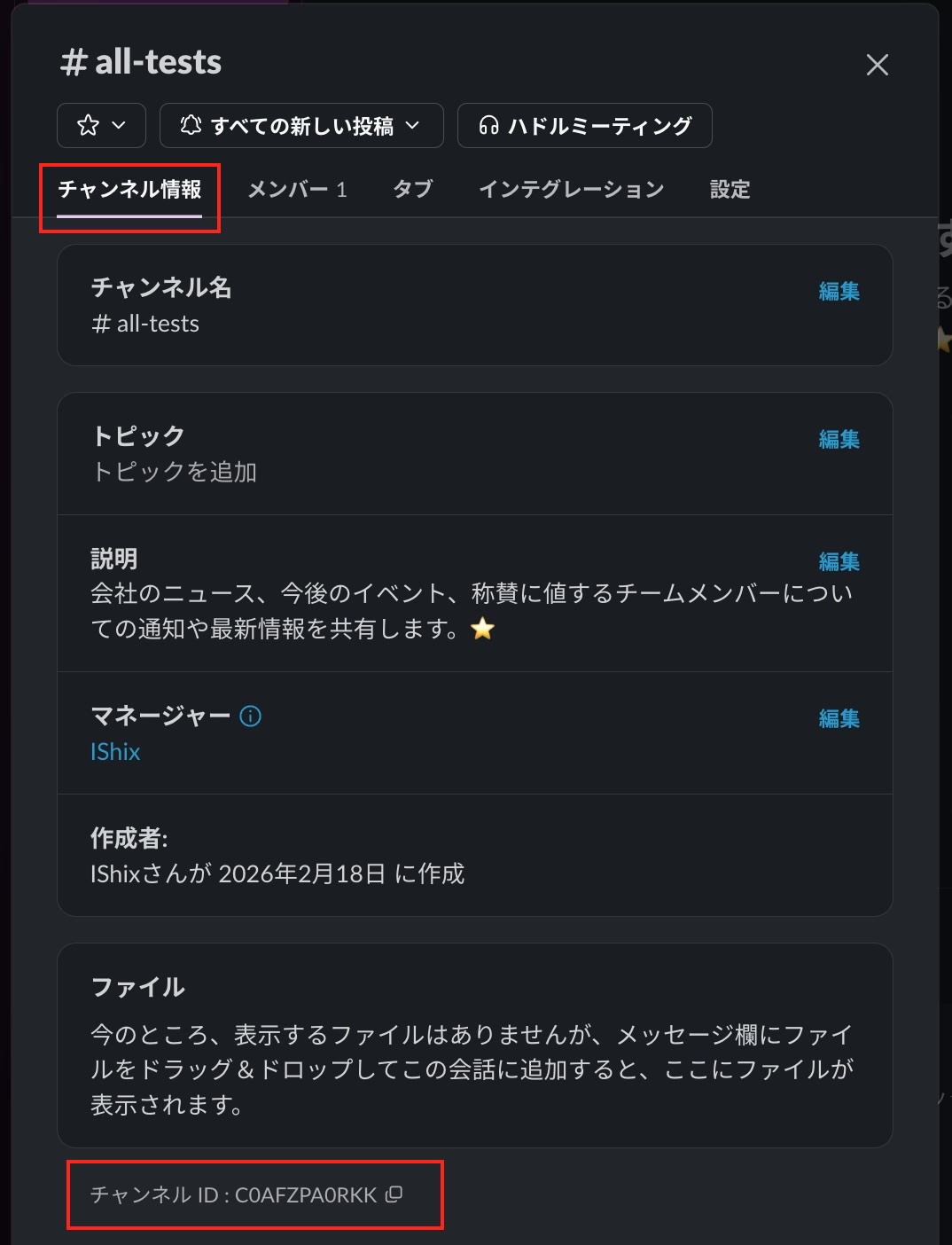
Unity Setup
Integrate the obtained "token" and "channel ID" into Logify-Unity.
1. Open Settings
Open the settings window from the menu bar Window > Logify-Unity > Settings.
2. Select Service
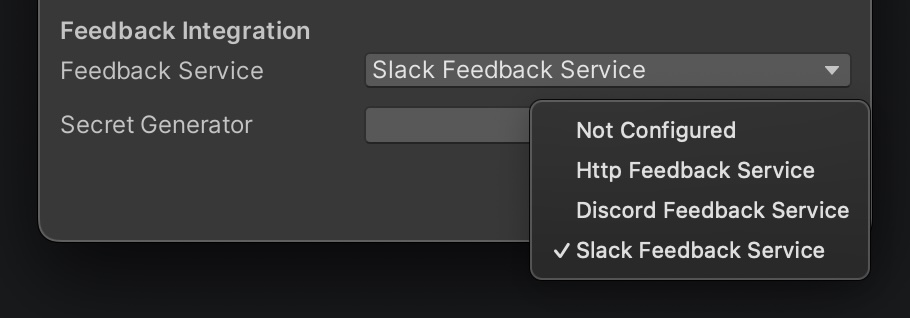
In the Feedback Integration section, select Slack Feedback Service from the Feedback Service dropdown. Then click the Open button of Secret Generator to open the generation tool.
3. Secure Generation
Enter the following information and click the Generate button.
- Slack Token: Token starting with
xoxb-saved earlier - Slack Channel: Channel ID saved earlier
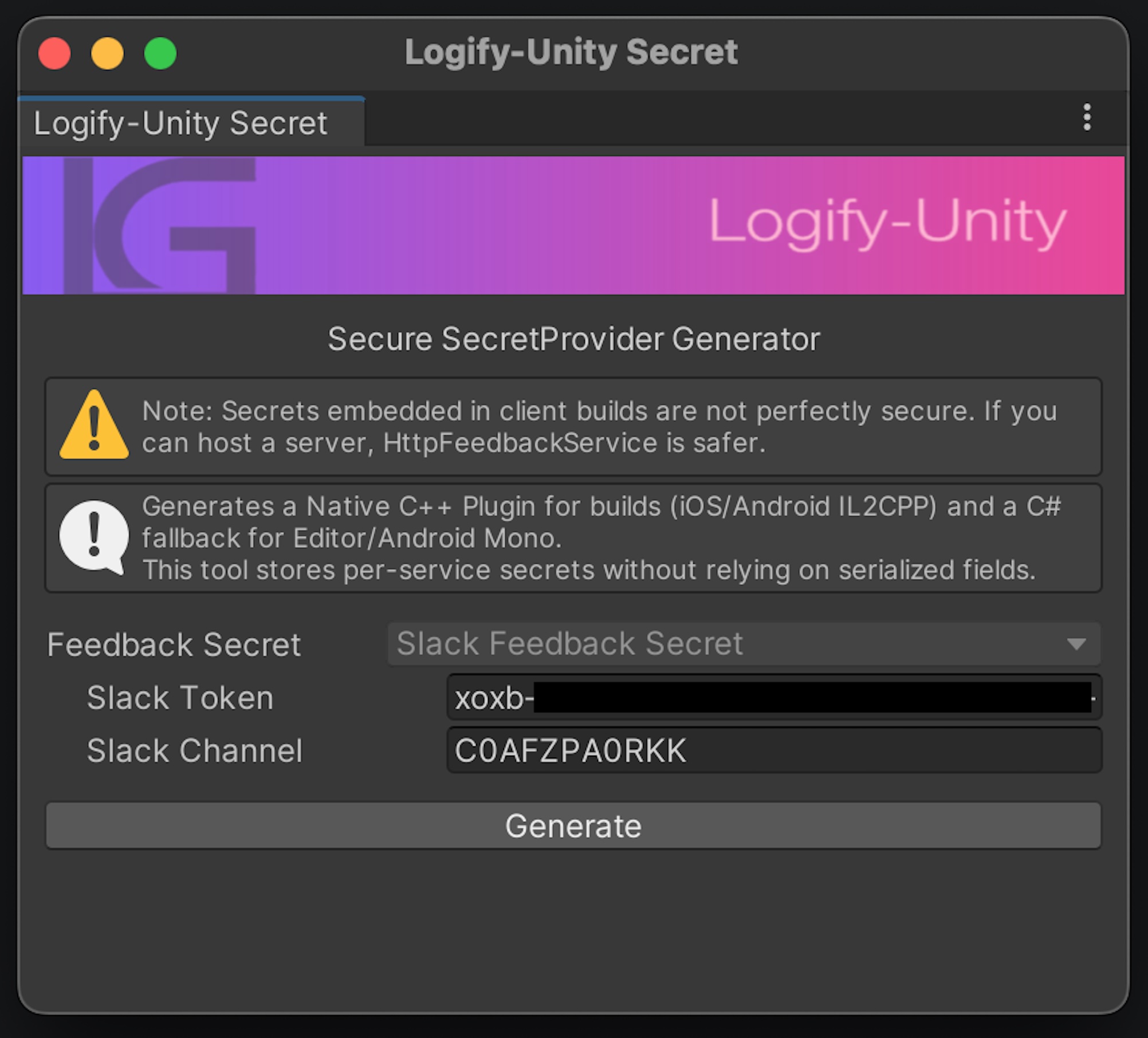
Executing Generate automatically generates obfuscated C++ code and C# Bridge code. This significantly reduces the risk of directly extracting token information from the binary after build.
To enable protection via C++ plugin, set Scripting Backend to [IL2CPP] in Unity's Build Settings before building.
- iOS / Android (IL2CPP): Generated Native C++ Plugin is used, providing strong protection
- Editor / Android (Mono): Automatically generated C# fallback code is used for compatibility
🧪 Testing
Once setup is complete, test whether feedback is actually received.
- Run the app following Testing Procedure.
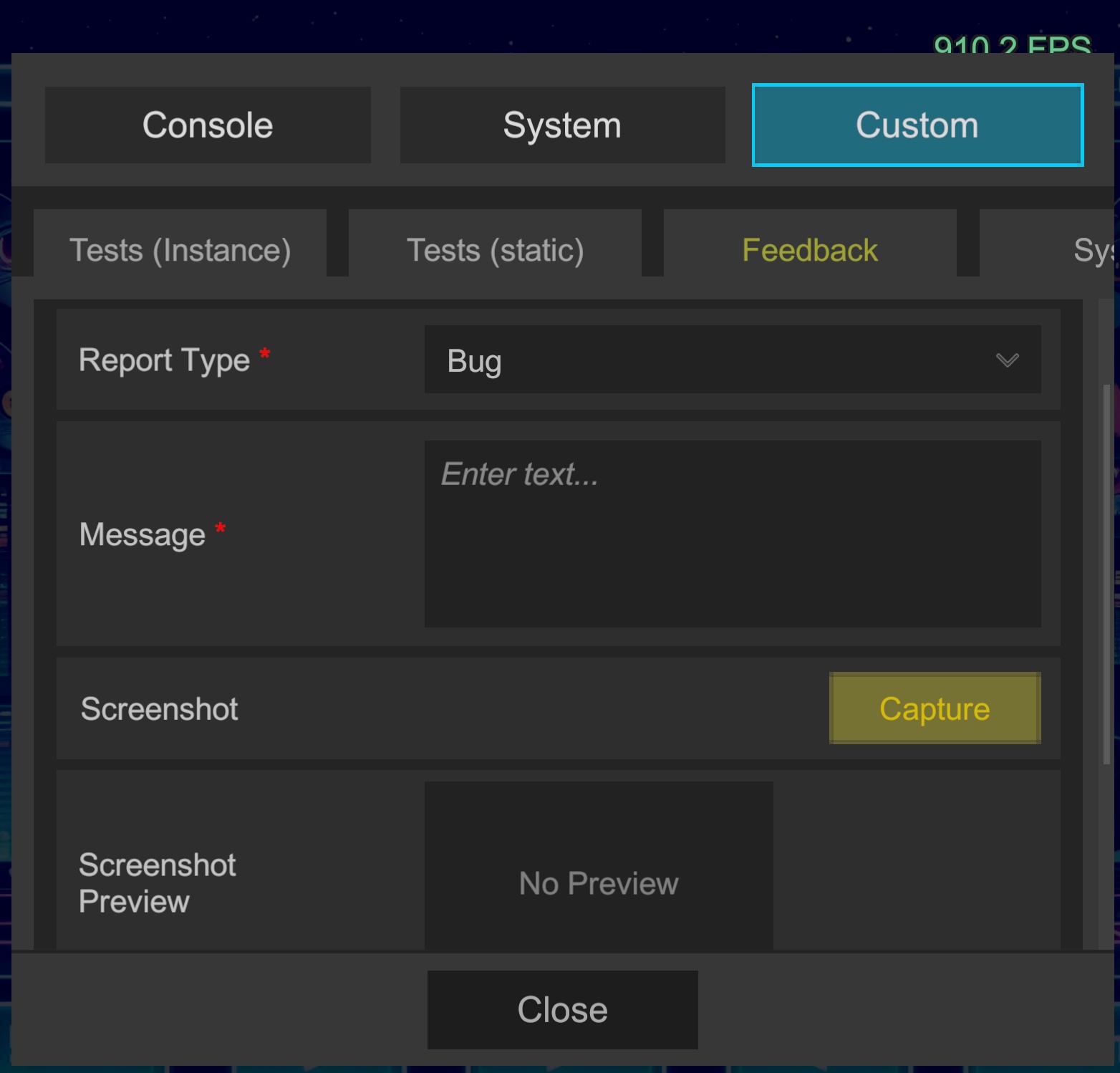
- Open the in-game Custom > Feedback tab, enter any message, and submit.
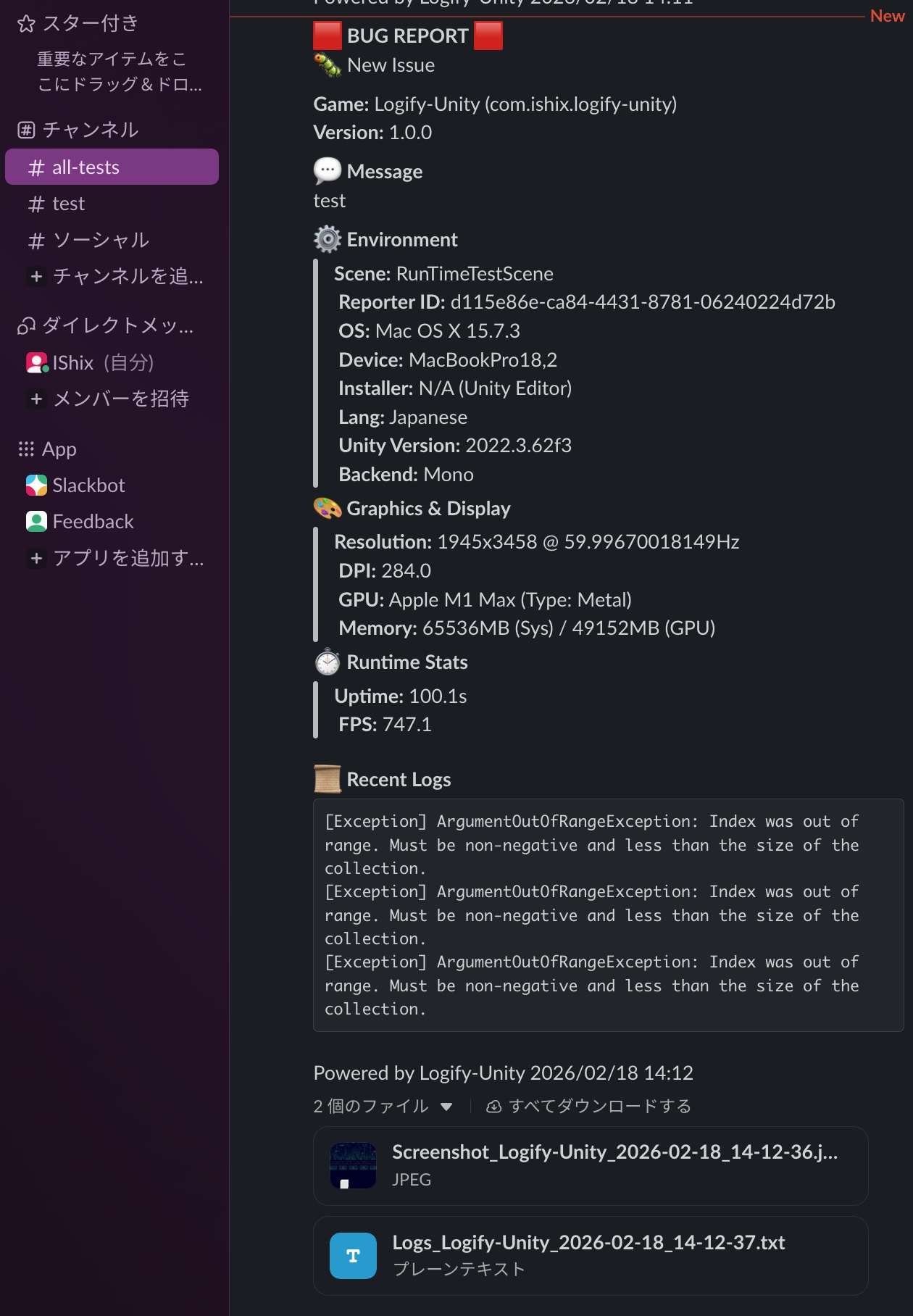
- Verify that the message with device information arrives in the designated Slack channel.
📬 Reception Example
🗄️ Server-Side Integration (Optional)
You're all set with the basic configuration!
If you plan to distribute your build to a wider group of testers, or if you require enhanced security and flexible notifications (such as email integration), consider using a dedicated backend server.
- ⚙️ PHP Server Setup and Operations Build your own backend to fully obfuscate tokens and ensure secure, encrypted communication.
- 🛡️ Server Operations and Security Learn why a server is beneficial for external testing, including the advantages of centralized risk management.